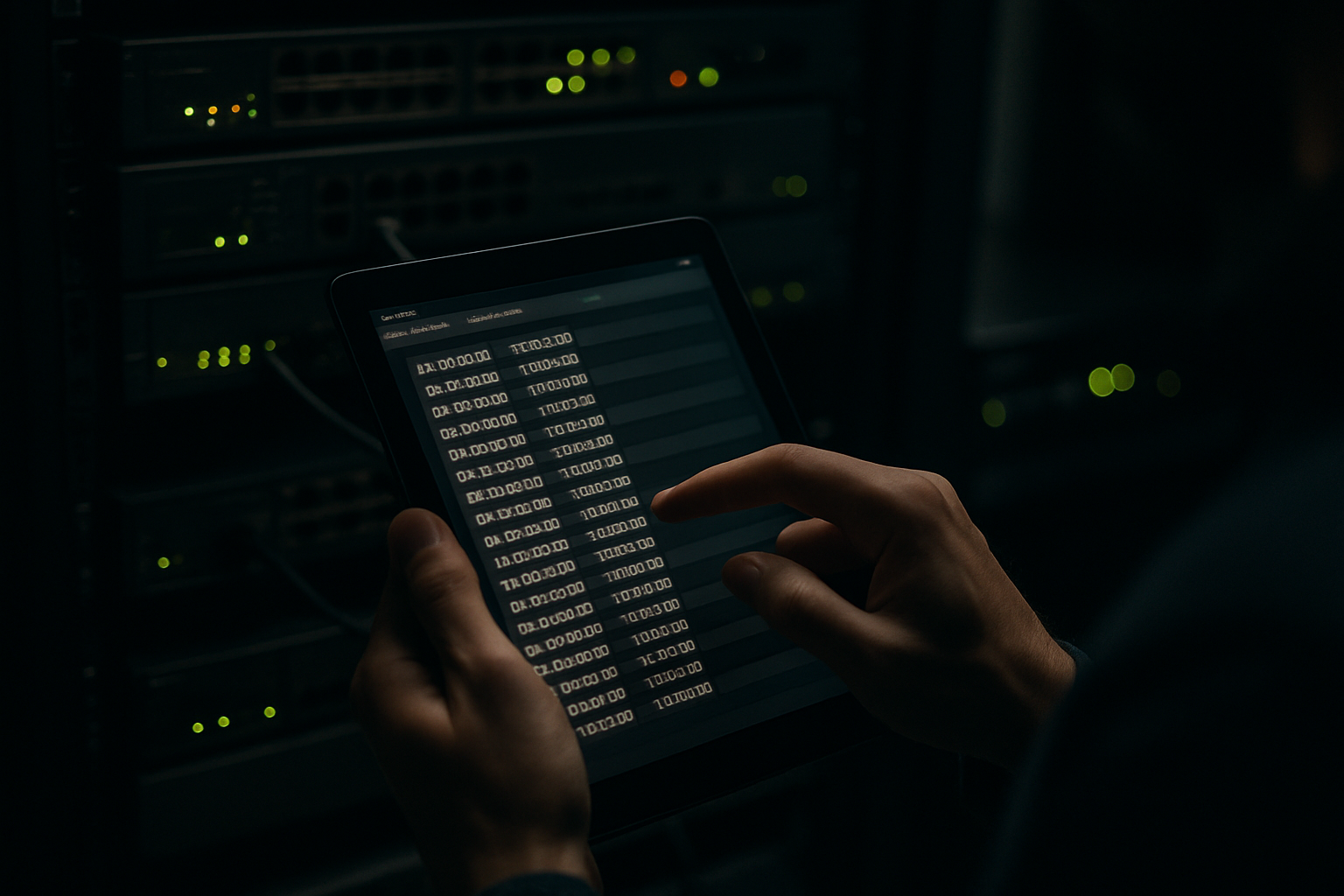
“The internet went down again” is not a diagnosis. It is a symptom with no timing, no scope, and no proof. For Colorado Springs businesses trying to get stable before the fall operating period, that missing detail is exactly why intermittent problems drag on and why perfectly usable equipment gets blamed too early. I see this a lot in offices with 10 to 150 employees. The outage feels random, everyone is frustrated, and the first instinct is to replace the firewall, replace the switches, replace the Wi Fi. Most of the time, the better first move is to capture evidence while the fault is happening.
A business should collect the exact outage time, which devices were affected, whether wired and wireless users failed in the same way, which applications were reachable, whether phones stayed up, and the power state of network equipment. Add screenshots, event logs, uptime records, and switch or firewall indicators so a specialist can separate ISP loss from an internal network failure and narrow the cause faster.
What information should a business collect when its network keeps going down intermittently?
Start with a simple incident record that captures time, scope, application reachability, and equipment status during the failure. The point is not to turn your office manager into a network engineer. The point is to replace vague reporting with evidence a specialist can correlate against logs and carrier events.
For intermittent business network outages, the minimum useful record looks like this:
- Exact time of failure. Note the start time to the minute, and the end time if it recovers. “Around 2ish” is much weaker than “2:14 p.m. to 2:18 p.m.”
- Who was affected. Count users and identify whether it was 1 person, 4 desks, 22 staff members, or the whole office.
- Connection type. Mark whether affected users were on wired Ethernet, office Wi Fi, guest Wi Fi, VPN, or cellular backup.
- What still worked. Test 3 to 5 things, such as Microsoft 365, a cloud EMR, a file server, internet browsing, VoIP phones, and printing.
- Power state. Confirm whether the modem, firewall, switch, access points, and battery backup were powered on with normal lights.
- Visible indicators. Record link lights, alarm lights, fan noise changes, and whether any device rebooted.
- Screenshots or photos. Capture error messages, Wi Fi status, firewall front panel, and switch LEDs.
A weak report sounds like this: “Internet was down for a while this morning.” A strong report sounds like this: “At 9:07 a.m., 11 wired users and 6 Wi Fi users in the front office lost Microsoft 365 and web access. The local file server still opened. Phones could still call internally but not externally. Firewall power stayed on, WAN light dropped, and the outage cleared at 9:11 a.m.”
Outage evidence checklist to keep at the front desk or help desk
- Date and exact start time
- Exact recovery time, if known
- Number of affected users
- Departments or locations affected
- Wired, Wi Fi, or both
- Applications that failed
- Applications that still worked
- Phone system behavior
- Photos of modem, firewall, and switch lights
- Weather or power event nearby, if relevant
How does timestamp correlation narrow intermittent business network outages?
Timestamp correlation turns a random complaint into a pattern. Once you know the exact minute of failure, a network specialist can line that up against firewall logs, switch events, access point logs, ISP notices, circuit flaps, DHCP failures, and power events.
Here is a hypothetical Colorado Springs office example. A 35 person professional services firm near downtown reports that “the internet keeps going down.” That statement does not tell me whether the problem is the ISP, the firewall, a bad switch uplink, Wi Fi only, or a power issue.
Now compare that to an evidence based record collected across 4 incidents in late August:
| Date | Time | Affected devices | Reachability | Power state |
|---|---|---|---|---|
| Aug 19 | 10:42 a.m. | All 14 wired desks on Switch A, 9 Wi Fi users | Internet failed. Local file server worked. Printer worked. | Firewall on. Switch A on. Modem WAN light dropped. |
| Aug 21 | 10:43 a.m. | Same 14 wired desks, 8 Wi Fi users | Microsoft 365 failed. Internal phones stayed up. | No device reboot observed. Modem WAN light dropped. |
| Aug 26 | 10:41 a.m. | Whole office | Cloud apps unreachable. Local server still reachable. | UPS normal. Firewall uptime unchanged. |
| Aug 28 | 10:44 a.m. | Whole office | Guest Wi Fi also failed. Cellular hotspot worked. | Firewall on. ISP modem link lost for 3 minutes. |
That pattern tells us a lot. The firewall did not reboot. Local network access survived. Wired and wireless failed together. The WAN link dropped at nearly the same time on four separate days. That strongly points upstream, not to a bad office switch or access point. If the office had only said “internet went down again,” somebody might have swapped hardware and still had the same issue next week.
I am a big believer in the clock. The exact minute often tells the truth before the log review even starts.
How do you separate internet-provider loss from an internal network failure?
You separate them by testing what is still reachable during the outage. If internal resources remain available while outside services fail, the evidence points one direction. If local systems, Wi Fi, and switching all fail together, it points another.
During intermittent business network outages, ask staff to test these in order:
- Can they open a local resource, such as an on site file server or network printer?
- Can they reach a public website?
- Can they open a cloud application like Microsoft 365?
- Do desk phones still have dial tone or external calling?
- Does a phone on cellular data reach the same cloud app?
Results matter:
- Local resources work, internet fails. More likely ISP circuit, modem, firewall WAN, or DNS path issue.
- Wired fails, Wi Fi works. More likely switch, cabling, VLAN, or local uplink issue.
- Wi Fi fails, wired works. More likely access point, controller, RF, or authentication issue.
- Everything fails and devices rebooted. More likely power, UPS, or hardware crash.
- Only one app fails. More likely application provider or identity issue, not full network loss.
This is also why I tell clients not to treat every outage as “the internet.” A cloud application issue at 8:16 a.m. is different from a switch loop at 1:32 p.m. If slowdowns hit on a pattern, it is also worth reviewing network traffic patterns first before blaming hardware.
Colorado Springs businesses see a mix of utility blips, summer storm activity, and busy seasonal operating periods that can expose weak UPS batteries, loose uplinks, or marginal provider circuits. Going into fall, when staffing, patient volume, guests, or project coordination pick up, that is the wrong time to still be guessing where the failure lives.
Which logs, uptime records, and hardware indicators matter most?
The most useful records are the ones that prove whether equipment lost power, lost link, or restarted. You do not need every log from every device first. You need the few records that answer whether the path broke upstream, internally, or at the edge.
Start with these evidence sources:
- Firewall event logs. Look for WAN link down, gateway unreachable, DHCP renew failures, VPN drops, and reboot events.
- Switch logs. Check uplink flaps, STP changes, port errors, PoE faults, and interface resets.
- Access point logs. Review AP restarts, controller disconnects, authentication failures, and channel events.
- Uptime records. Device uptime shows whether a firewall has been running for 147 days or rebooted 4 minutes before users called.
- UPS alerts. Battery failure and transfer events matter more than many offices realize.
- ISP modem indicators. Loss of sync, flashing WAN status, or recurring retrains can point straight to the carrier side.
A source worth knowing here is CISA. Their guidance regularly reinforces the value of logging and monitoring, not just for security, but for operational response. If there is no retained data, every intermittent event becomes a fresh mystery.
One statistic is worth keeping in mind. According to Gartner, the average cost of network downtime can run into thousands of dollars per hour for many organizations. Exact figures vary by business, but even a 15 minute outage that stalls 12 employees, phones, and checkout or scheduling activity is expensive enough to justify disciplined evidence capture.
I would much rather tell a client they do not need a new firewall than sell a box that does not solve the problem. That is the whole point of evidence based troubleshooting.
Common mistake: rebooting everything before documenting anything
A full reboot may restore service, but it also wipes out clues. Before power cycling the modem, firewall, or switch, take 3 photos of front panel lights, note the time, and confirm which applications still fail. If you must reboot to keep the business running, record exactly when each device was restarted so the log timeline still makes sense later.
What should a business do during the outage, right after it ends, and after hours?
The right method is staged. Capture live facts first, preserve logs second, and then decide whether the issue needs ISP escalation, internal remediation, or longer monitoring. Not every intermittent problem is easy to reproduce, so your process has to work even when the fault disappears in 2 to 5 minutes.
During the outage:
- Write down the exact time.
- Test 3 to 5 critical apps.
- Check 1 wired device and 1 Wi Fi device.
- Photograph modem, firewall, switch, and UPS status lights.
- Ask whether neighboring suites or locations reported a provider issue.
Right after service returns:
- Export or save relevant logs before retention rolls over.
- Note whether any device uptime reset to 0 days or a few minutes.
- Compare staff reports for consistency by time and scope.
- Open a ticket with the ISP if WAN loss indicators match.
For recurring events or after hours:
- Set up external monitoring or alerting.
- Define who gets called when the office is closed.
- Document whether a manager is authorized to approve ISP dispatch.
- Make sure someone knows what not to reboot first.
If your business has recurring evening or weekend issues, it helps to define after hours IT support expectations before an emergency. Intermittent faults rarely wait for a convenient time.
At QuByte, this same discipline is part of what I mean by proactive remote IT support. Good support is not just answering the phone after a failure. It is having the records to prove what failed and what did not.
When is equipment replacement actually the next step?
Replace equipment after the evidence points there, not before. If logs show repeated reboots, interface errors on the same port, failed power supplies, overheating, or hardware faults tied to the outage timestamps, then replacement becomes a technical conclusion instead of a sales reflex.
Examples that support replacement:
- Firewall uptime resets 3 times in 14 days with no planned restart.
- The same switch uplink shows CRC or interface errors during each incident.
- An access point drops clients and reboots under normal load.
- A UPS battery test fails and power events align with outages.
Examples that do not support replacement by themselves:
- One employee saying Wi Fi felt slow twice this month.
- A single cloud app error while other internet services worked.
- An ISP modem losing carrier sync while the internal LAN stayed stable.
If you want a local team that starts with the business problem instead of a shopping list, that is exactly how we work at QuByte Systems. We are based here in Colorado Springs, and a big part of our job is telling clients what they do not need to buy.
Frequently Asked Questions
How many outage incidents should we record before asking for specialist help?
Ask for help on the first serious incident if business operations are affected, but try to capture evidence from at least 2 to 4 events if the problem is brief and intermittent. Even 2 accurate timestamps with affected device details are far more useful than a month of general complaints.
What if the outage ends before we can collect everything?
Get the basics first. Time, affected users, wired versus Wi Fi, app reachability, and equipment lights. Those 5 data points are enough to start correlation. After that, preserve logs and note device uptime. You are not trying to collect everything. You are trying to keep the best clues from disappearing.
See how we prove the cause before recommending a fix
If your Colorado Springs business is dealing with intermittent business network outages before the fall rush, we can review how incidents are being recorded, what your firewall and switch logs actually show, and whether the evidence points to the ISP, internal network, power, or hardware failure. That is how we keep replacement decisions grounded in proof, not frustration. Beyond IT support. Engineering what comes next.
Book a discovery callExplore more, or reach out directly to QuByte Systems in Colorado Springs, CO.