It learned patterns
AI models are trained on large examples of language, code, images, and other data patterns.
One connected lesson
Eight focused sections, one smooth path. You'll start with a plain-English foundation of what AI is, then the AI layers, real prompting examples, projects and guardrails, and finish by setting up Claude and ChatGPT to match your own tone and work style. A plain-English glossary sits at the end for reference.
Section 1
Before model names, tools, and settings, here is one shared definition: AI is software that uses patterns, instructions, and context to generate useful outputs or help complete tasks. It is powerful, but it still needs human direction and review.
AI models are trained on large examples of language, code, images, and other data patterns.
Your prompt tells the assistant what job to do, what tone to use, and what result you want.
Files, chat history, examples, and details make the output more specific and useful.
AI can be confident and still be wrong. People still own accuracy, safety, and decisions.
It does not “know” like a person. It generates likely, useful responses from patterns, instructions, and available context.
ChatGPT, Claude, Gemini, Copilot, and Perplexity are different assistants. They may use different models, tools, memory, files, and web access.
The best mental model is a capable assistant: fast, helpful, and flexible, but better with clear instructions and good supervision.
AI gets you to a better first draft, a clearer understanding, or a better next step faster. It does not remove your responsibility. It helps you think and produce.
AI is not always right, not private by default, and not ready to take action without controls. Aim for useful confidence, not blind trust.
Section 2
The easiest way to stop confusion is to separate the layers. Company, assistant, model, mode, prompt, project, files, and connectors are not the same thing.
“Who built the truck, what do you drive, what powers it, and what is attached to it?”
OpenAI, Anthropic, Google, Microsoft, and Meta are companies. ChatGPT, Claude, Gemini, Copilot, and Perplexity are assistants. Models power the assistant.
Different engine, drive setting, cargo, and attached tools change the result. That is how AI systems behave differently.
Live example
A vague question about AI tools produces generic advice. A specific job and real context produce a useful recommendation.
Typing prompt
Typing prompt
Model versions keep moving
When a model moves from one version to the next, the name is only the label. The real question is: what changed in capability, cost, speed, context, tools, and safety?
Newer versions usually improve reasoning, writing, coding, instruction following, analysis, and reliability on harder tasks.
Expect stronger multimodal work: text, images, audio, video, files, screens, spreadsheets, and connected tools inside one workflow.
Newer versions can hold more in mind at once, handle longer documents, and use more tools.
Model upgrades do not arrive on a tidy monthly schedule. Teach people to check release notes and expect names to change.
Models keep getting more capable, more connected, more multimodal, and more action-oriented. That makes prompting, context, permissions, and judgment more important, not less.
Section 3
You feel this one immediately. Weak prompts make AI guess. Strong prompts give the assistant a role, context, facts, tone, constraints, and an output format.
Typing demo
You type
AI returns
You type
AI returns
What should AI do?
What background matters?
Who will read it?
How should it sound?
What must it include or avoid?
What should it look like?
The mental model
On their own, ChatGPT and Claude are generic. Name the shape you need in your prompt, the role, the audience, the tone, the format, and they become exactly that: a patient teacher, a blunt editor, a careful analyst. Your instructions are what give them form. Vague prompt, vague shape. Specific prompt, specific shape.
AI Images
Tools like ChatGPT can create images from a description. It works just like prompting text: the more specific you are about the subject, the style, and the details, the closer you get to what you pictured.
What is in the picture. "A friendly golden retriever on a front porch."
How it should look: photo, watercolor, cartoon, line drawing, product shot.
Colors, lighting, mood, setting, and anything that must be there.
Shape and use: square for social, wide for a banner, room for text.
Weak vs strong image prompt
A vague image prompt gives you a generic, stock-looking picture. A specific one gives you something you can use.
Two image models
Just like text models, image models come in versions. Newer usually means sharper detail, better text inside the image, and closer prompt-following, sometimes for a bit more cost or time.
The earlier version. Fast and solid for simple images and quick drafts.
Newer. Sharper detail, better at text in the image, and follows the prompt more closely.
Section 4
AI does better when the work is organized. A focused project gives it the right instructions, trusted files, examples, and history.
Context order
Tokens and limits
Tokens are chunks of text. Your prompt, the assistant’s reply, conversation history, uploaded-file text, and tool results all take space. More context can be helpful, but long messy chats consume more capacity and can make the work slower or less focused.
Sometimes, yes. If you hit a limit on a premium model, the app may let you switch to a lighter one. If you hit a bigger account or plan limit, switching may not help. The fix is usually simple: start a fresh chat, use a project, or wait for the limit to reset.
Plain-English rule of thumb: 1 token is roughly 4 English characters, and 100 tokens is roughly 75 English words.
Real example
Uploading a file once somewhere is not the same as giving the assistant clean context inside the right project.
The assistant does not know which file is current, what the board cares about, or what decision is being made.
The assistant summarizes variance, risks, decisions needed, and next steps in the format leadership expects.
Purpose, rules, reference files, examples, active chats, and shared templates.
Unrelated topics, duplicate files, old versions, unclear instructions, and confidential data that does not belong.
One project per workstream, clean file names, current sources, handoff summaries, and fresh chats when messy.
Section 5
When AI can only read or draft, the risk is lower. When it can send, delete, buy, change records, or run commands, you need approval, logging, rollback, and clear ownership.
Real failure scenario
AI taking action is not the problem. Unreviewed, over-permissioned action is.
Give the assistant only the access it needs for the job.
Require sign-off before sending, deleting, purchasing, or changing records.
Know who did what, when, and why.
Keep versions and recovery paths so mistakes can be fixed.
Section 6
For business owners and managers, the goal is to move from ad hoc experimentation to organized, connected, governed AI that produces measurable outcomes.
Maturity path
Business example
There is a real difference between people experimenting and the company operating with AI.
Personal accounts, copied client data, no review, no shared prompts, no way to measure whether it helped.
Clear acceptable use, reusable prompts, no sensitive data in random tools, manager review, and simple outcome tracking.
Section 7
Set the defaults before you ask for work. Two things shape Claude's voice: your profile preferences plus a Style for how it writes, and Projects with project instructions for work-specific context.
Setup checklist
Claude Projects are designed as self-contained workspaces with chat history, knowledge, and project instructions. Usage is affected by conversation length, files, model choice, and features, so clean projects help conserve capacity.
Profile prompt example
Copy a version of this into your Claude profile preferences (or a project's instructions), then adjust it to fit your work.
 Menu labels may change over time, but the pattern holds: preferences and a Style for voice, Projects for work context.
Section 8
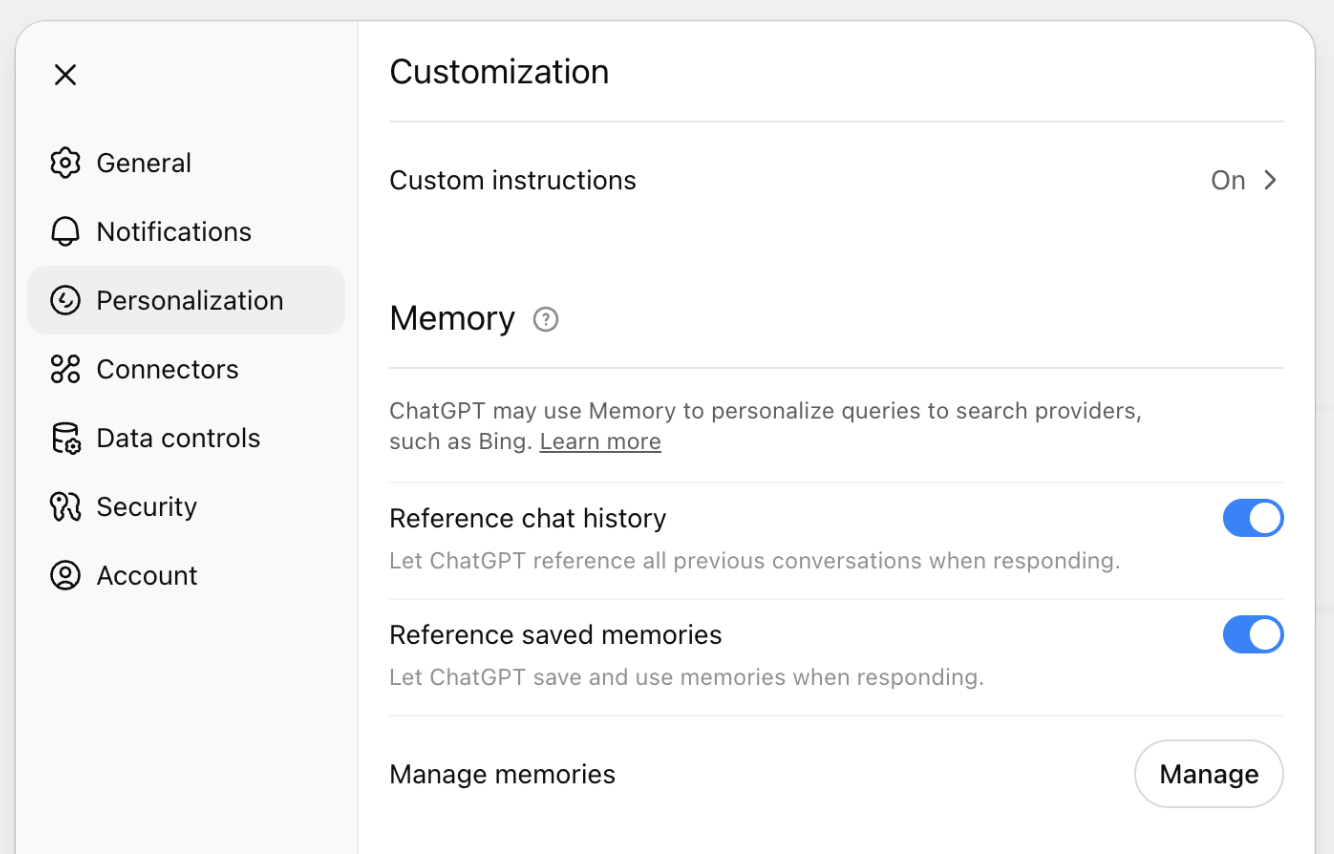
Set the defaults once so every new chat starts closer to what you need. Personalization is not magic. It is standing context plus memory controls.
Setup checklist
OpenAI says Custom Instructions are available on Web, Desktop, iOS, and Android and are applied immediately across chats. ChatGPT plans may also include model/message limits, so use heavier models when the work truly needs them.
Official reference image
This is the Personalization and Memory settings area in ChatGPT, so you know exactly where to look.
Custom Instructions example
A one-time instruction changes every future draft.
Wrap-up
By the end, you can explain what AI is in plain English, choose the right assistant, write stronger prompts, structure projects better, explain AI risk clearly, mature your business's AI use, and set up Claude and ChatGPT for your own tone.
Reference
A quick glossary of the words that come up around AI. Skim it now, or come back when a term shows up.
When AI states something false with full confidence. It is filling a gap with a likely-sounding answer, not lying.
Watch for invented citations, cases, names, or numbers. Always verify facts and quotes.
The small chunks of text AI reads and writes. Your prompt, your files, and the reply all spend tokens.
Rough rule: 1 token is about 4 characters, and 100 tokens is about 75 words.
How much the model can hold in mind at once: your prompt, your files, and the conversation so far.
A long, messy chat pushes older details out of view. Start fresh when it drifts.
Your prompt is what you type now. The system prompt, or custom instructions, is the standing setup that shapes every reply.
Set "plain English, no em dashes" once and it applies to every chat.
A creativity dial. Low is safe and predictable. High is more varied and surprising.
Keep it low for policy and numbers, higher for brainstorming.
The limits that keep AI safe and on task: refusals, permissions, approvals, and your own rules.
"List files for review, do not delete anything, wait for approval." See the Guardrails section.
Giving AI real source material to answer from instead of relying on memory.
Attach the actual policy so it quotes your document, not a guess.
AI that can take steps and use tools, not just chat. It can search, open files, and draft a reply.
This is why permissions and review matter even more.